Guides Welcome to the IPTV documentation! This guide provides step-by-step instructions for setting up and using HorizonTV on a variety of devices. If you have any questions, feel free to reach out to us for assistance!
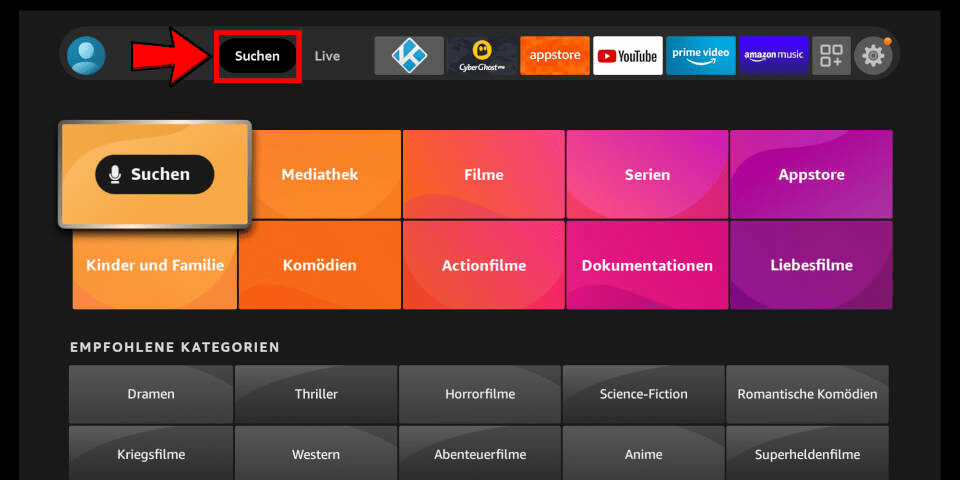
Navigate to the “Search” entry in the Android TV or Fire TV main menu and select the “Search” tile.
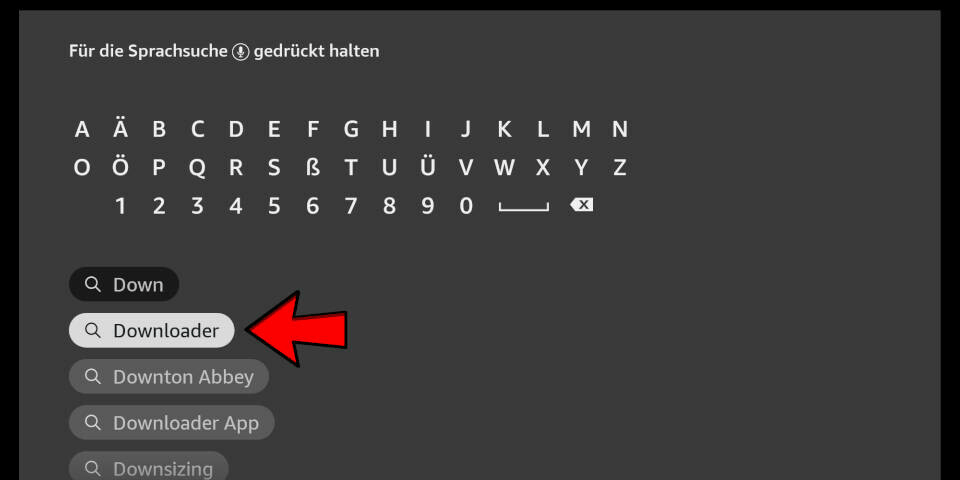
Enter the first few letters of the word “Downloader” as your search term and select the corresponding search result using the arrow keys and the enter button on your remote.
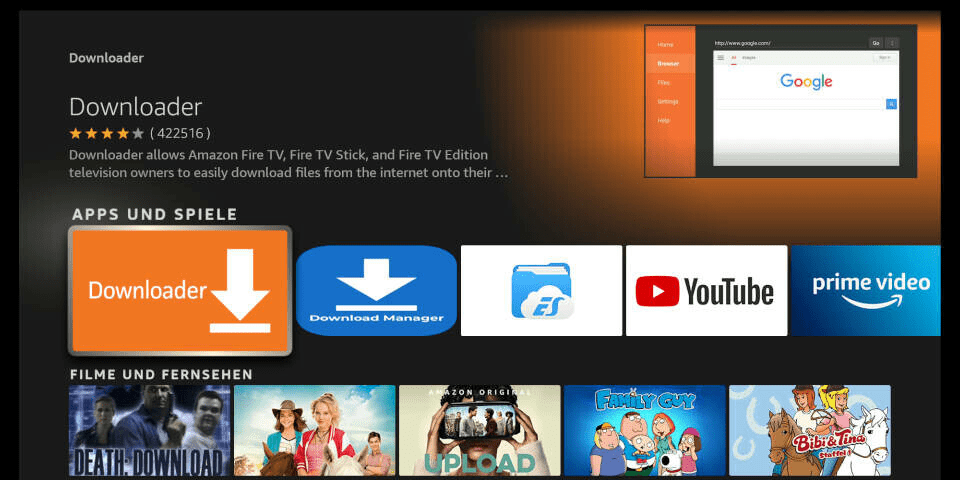
Open the entry for the Fire TV Downloader app.
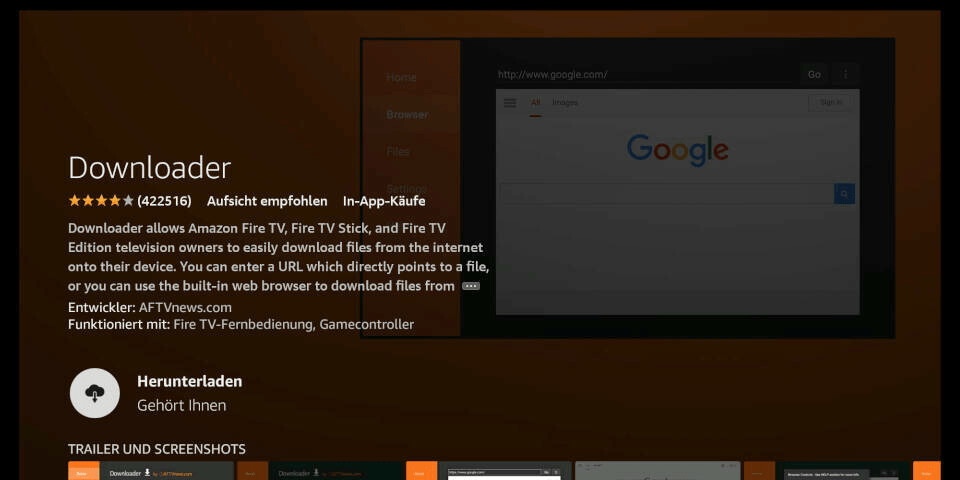
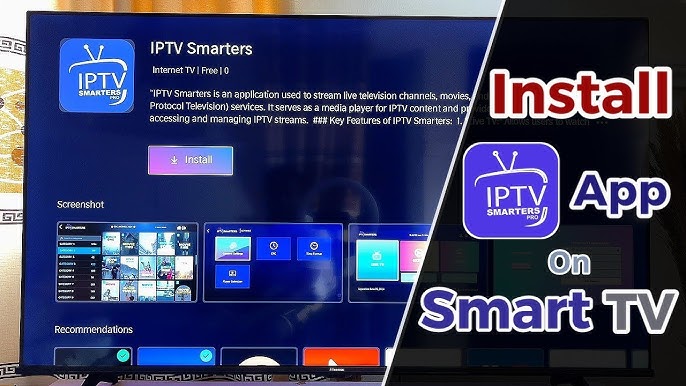
Press the enter button on your remote to start the installation.
The app will be downloaded. Open the app after installation.
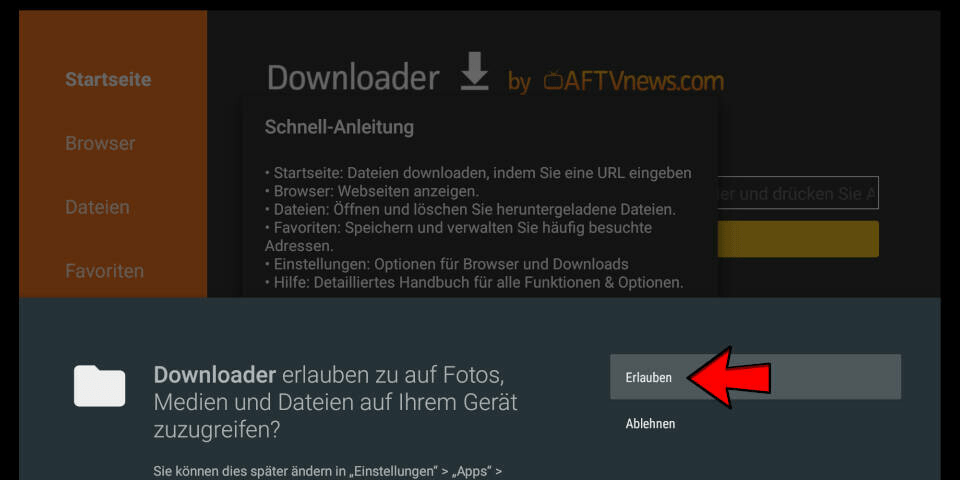
Upon first launch, you’ll need to grant the Downloader access to your file system. Select the “Allow” option.
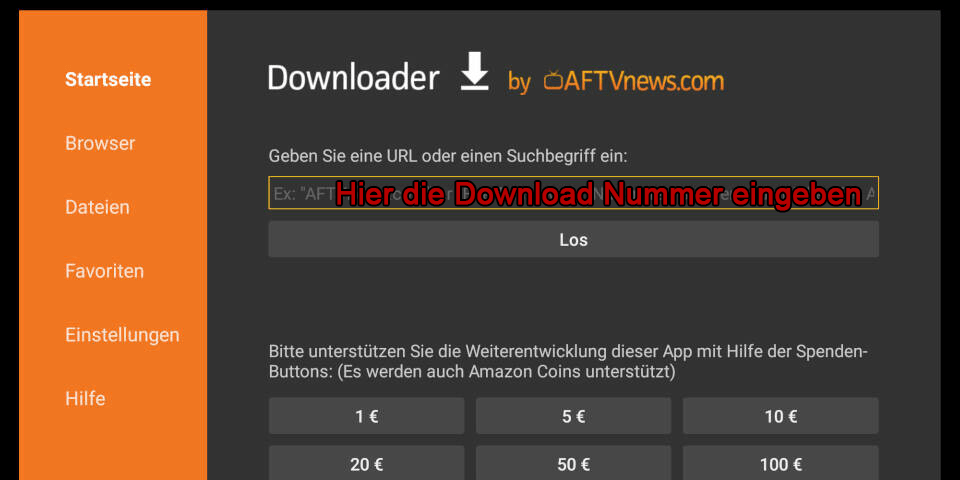
On the home screen of the Downloader, you can enter a number directly in the center. You will receive this number from us after your purchase or when using a trial account. Enter the number and press “Go.
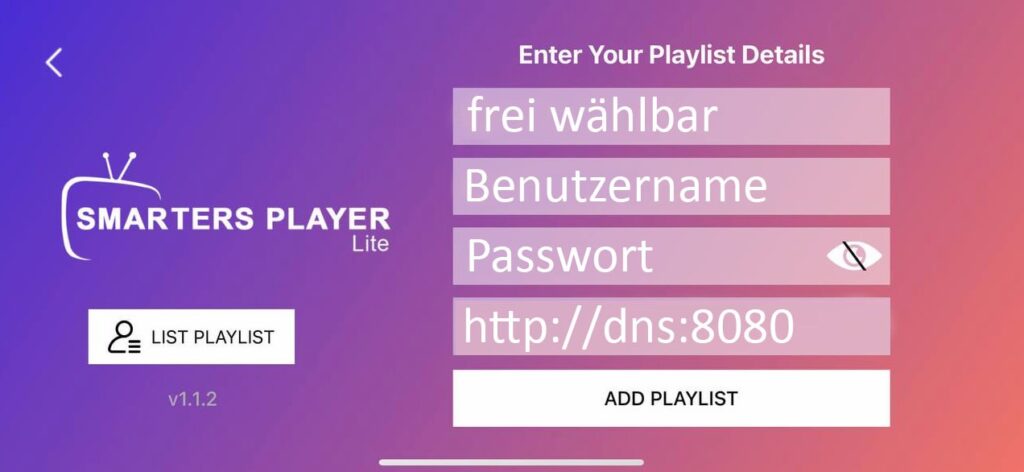
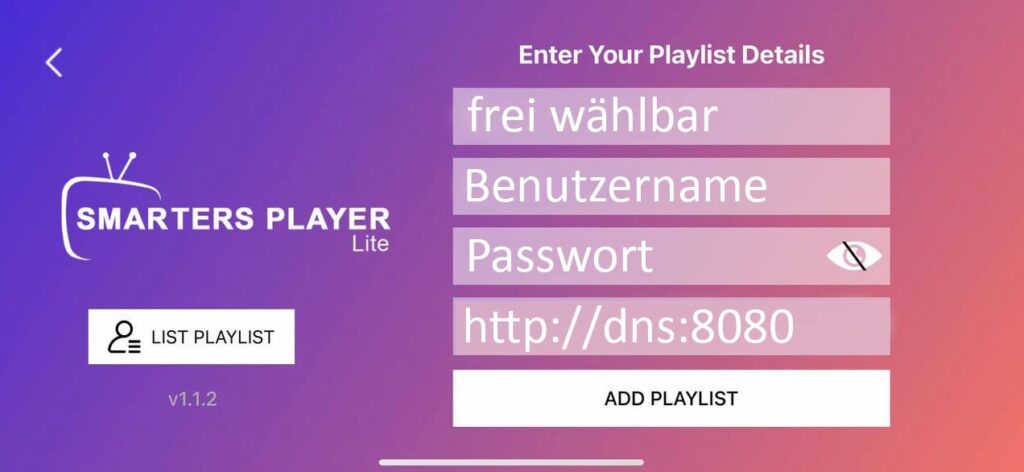
Our app will now be downloaded. Simply install and launch it! Enter your login credentials (username and password) – and that’s it!